
November 25, 2026
Another Dispatch day: assign a task without dragging, undo a mistake in seconds and see the sequence of a booking's legs. Large-screen users get wider zoom levels, a details panel and keyboard shortcuts.
New
«Assign to driver…» with search
A task's menu (and the touch actions panel) now has «Assign to driver…» — or «Change driver…» if the task already has one. It opens a searchable list (accents don't matter): first the current driver, then the free ones and finally the busy ones, with the time of the conflict («Busy 10:00–11:00»). If the driver's vehicle lacks the requested class, you get the same warning as when dragging, with «Undo».
It is the quickest way to assign on a tablet: two taps instead of a long drag.
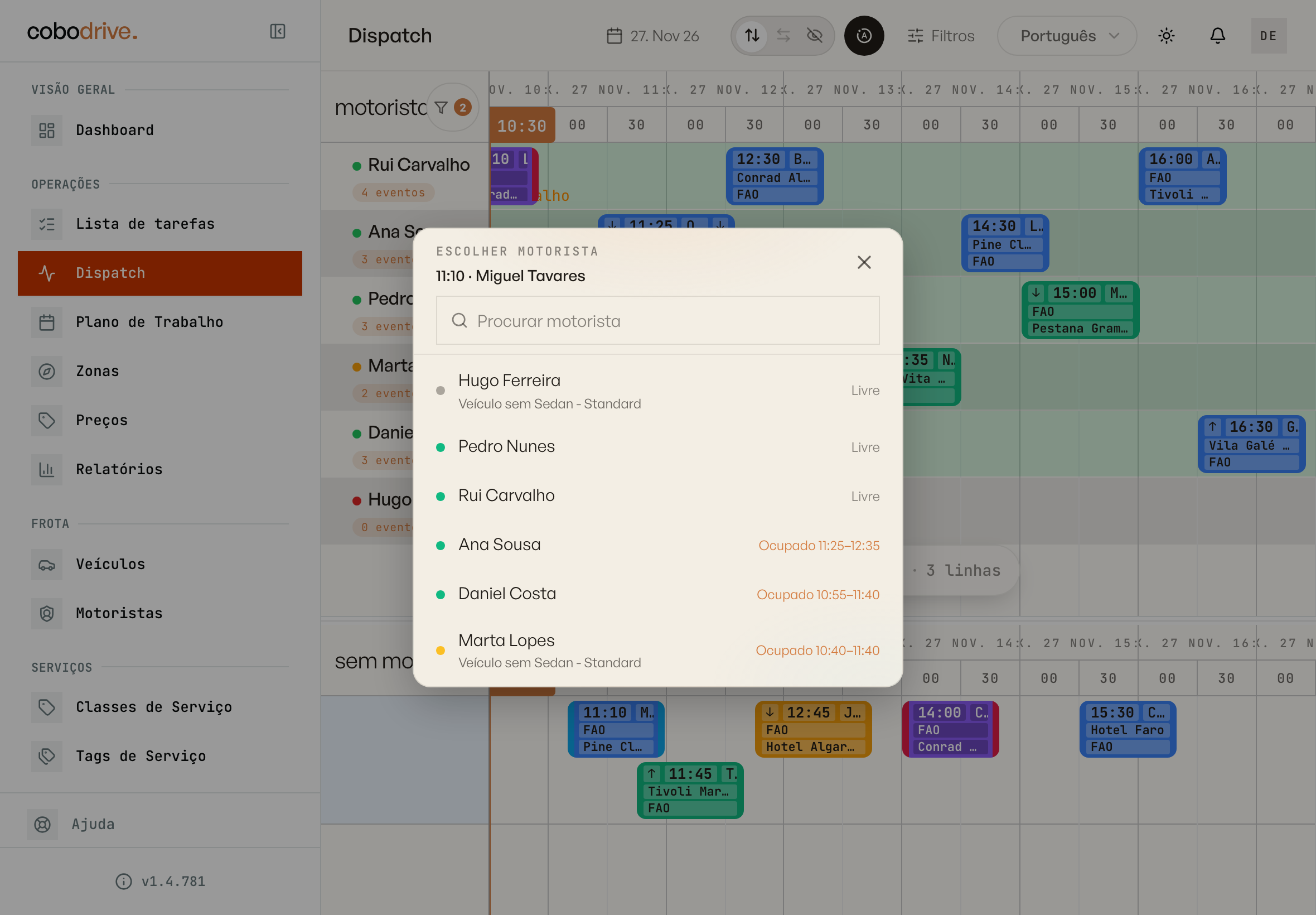
Where: Dispatch › task menu › Assign to driver…
Ref. #350
v1.4.759
«Undo» after assigning, removing an assignment or deallocating
Assigning, removing the assignment or deallocating — one task or several at once — now shows a message with «Undo» for 8 seconds, which restores the previous driver and state. If something fails, you see a warning instead of a silent failure. The driver is notified right away; if you undo, they receive the matching notification.
Where: Dispatch
Ref. #350
v1.4.759
Sequence arrows between legs of the same booking
When you select a leg of a booking with several legs, the board draws arrows to the previous and the next leg. The arrow turns red when the next leg starts before the previous one is planned to end. If the other leg is on another board or out of view, the task card shows «Leg 2/3» and the times of the previous and next legs, with the conflict warning.
Where: Dispatch
Ref. #241
v1.4.762
Large screens: wider zoom, task panel and keyboard shortcuts
On screens from 1920 px, the «Wide» zoom (14 hours) appears and, from 2400 px, «Full day» (24 hours); default sizes grow with the screen. A side panel shows the details of the «Selected task» and can be collapsed.
Keyboard shortcuts for the selected task: P assign / remove assignment, D deallocate, Enter details, M messages, A assign to driver and Del delete (with «hold to confirm»). The key is shown next to each menu option. Shortcuts don't fire while you type in a field.
Where: Dispatch
Ref. #350
v1.4.761
Improved
Driver filters in the column header, and conflicts always visible
The «Filters» button in the drivers column header shows how many filters are active and opens the list's quick filters (for example «Dynamic view» and the shift filters). Overlapping tasks of the same driver get a red outline and the driver shows «⚠ N», even with stacking off. On tablets, tapping a floating window brings it to the front.
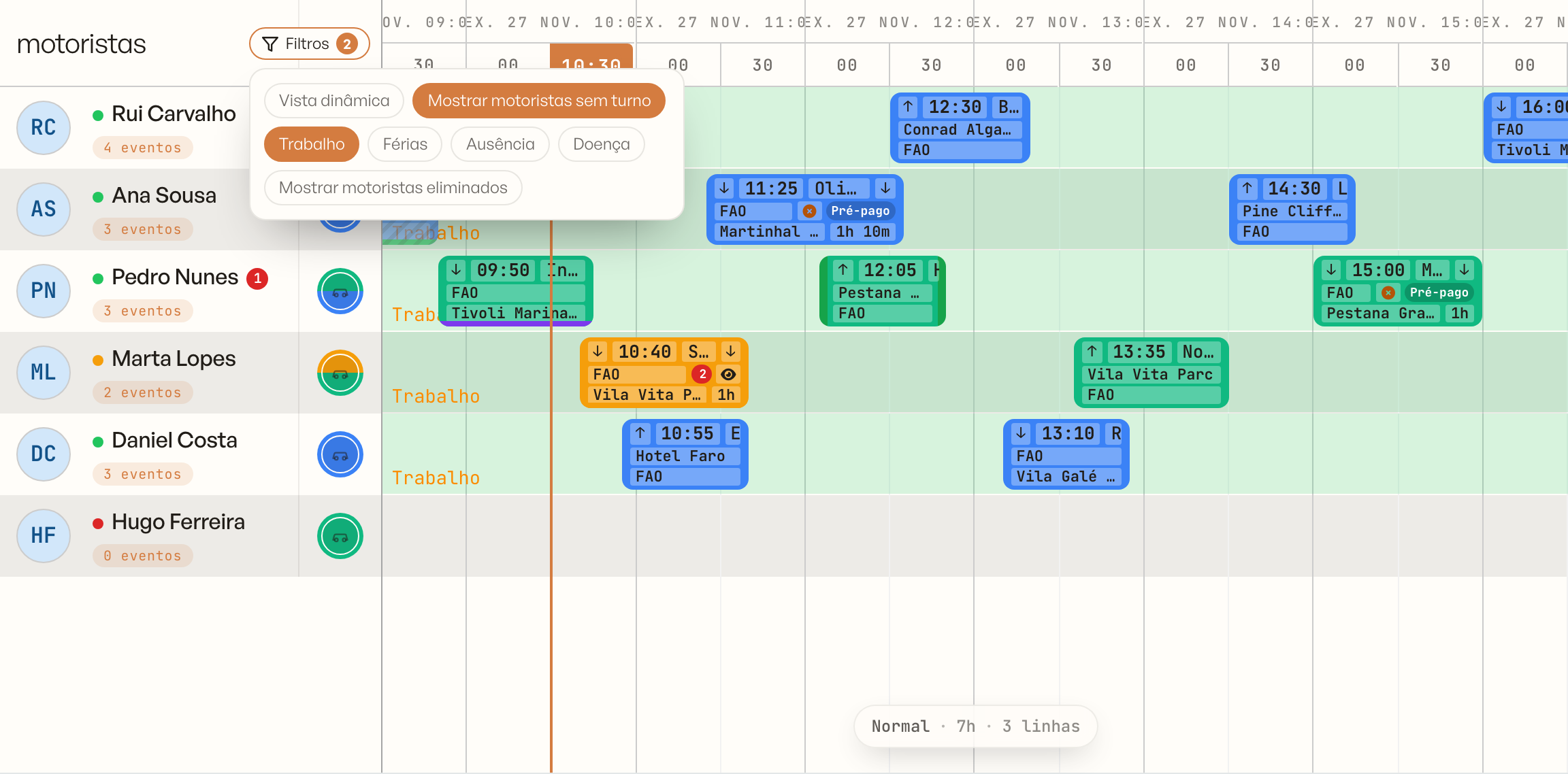
Where: Dispatch › drivers column › Filters
Ref. #350
v1.4.759
More readable light and dark themes in Dispatch
Task text automatically switches between white and dark depending on the class colour, the flight strip is readable in the dark theme, finished tasks stay visible in the dark, and arrivals and departures are told apart by «↓» and «↑».
Where: Dispatch
Ref. #350
v1.4.760